Monday, February 14, 2022

Rename AxDB database in D365Fo

To rename the AxDB database in the tier-1 machine (Dev machine), stop following services.
  1. Management reporter 2012 process service
  2. Microsoft Dynamics 365 for Operations – Batch Management service
  3. Microsoft Dynamics 365 for Operations – Data import/Export Framework service
  4. World Wide Web Publishing Service

Wednesday, December 15, 2021

Apply color theme to the D365F&O environment

 Hi, 

As per my requirement to apply a specific color to a particular environment, I found the below link which shows a quick solution to change the color theme of the environment.

https://timsaxblog.wordpress.com/2018/02/23/set-the-user-colour-theme-in-dynamics-365-for-operations/


I am just copy-pasting the full details of timsaxblog here on my blog for your quick reference.


We’re in the User acceptance test phase of our current project and now have users working in User acceptance test, Data migration, Training (and soon) Production environments.

One of the user personalisation options in Dynamics 365 for Operations is setting the colour theme for the environment – I’d prefer to have the option of setting a company colour (https://ideas.dynamics.com/ideas/dynamics-operations/ID0003297 ) but luckily in our current project we only have one company configured.

What we’re going to do here is set the user colour theme the same for all users, so that the users (and support staff) can readily identify which environment they are working in. Later on we might do this as a modification – for instance make this a menu option that a systems administrator could run, or write a script which we can run after we’ve copied data from one environment to another – but for now here’s a quick and simple way of doing this

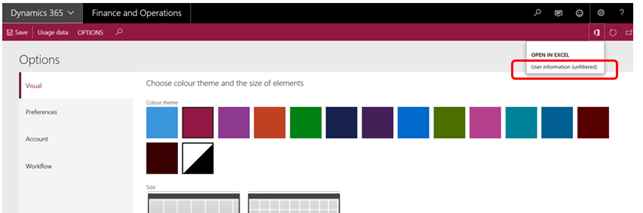
1. Log into an environment (e.g. UAT) as a systems administrator and navigate to your Settings > User options:

The system displays:

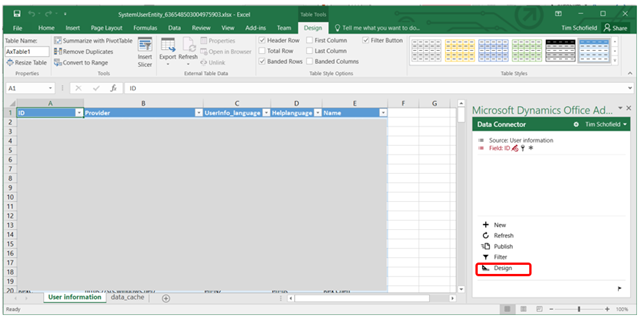
2. Click Microsoft office > User information (unfiltered), and download and open the Excel spreadsheet:

You might need configure and or sign in to the Office Add-in. Configuring the office add-in is outside the scope of this blog (and a bit too technical for me).

3. Add the Theme column. Click Design:

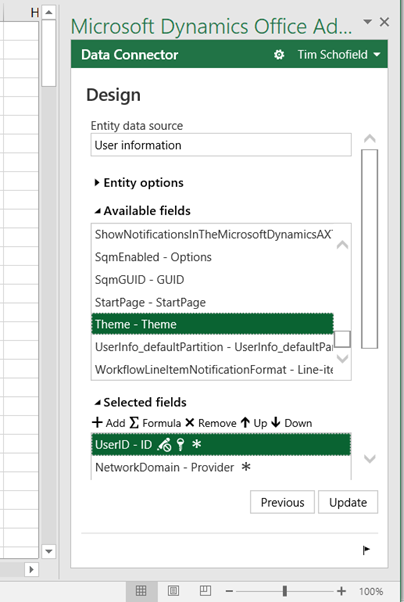
Click the Pen icon next to the SystemUser Table:

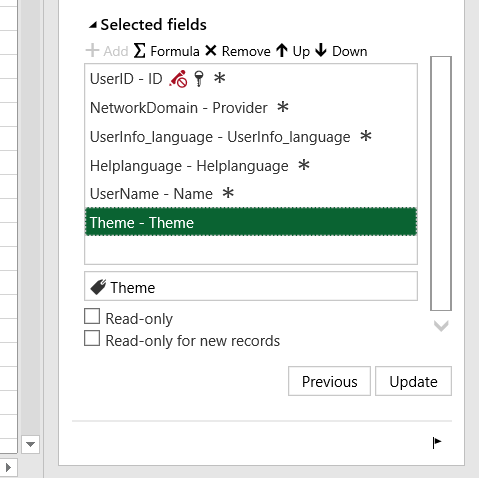
Add ‘Theme’ to the select fields (Double-click it, or Select it and click Add):

Click Update:

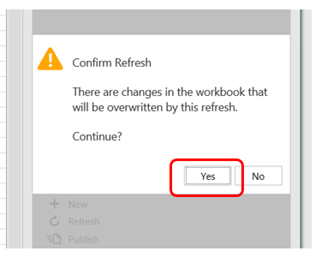
Yes:

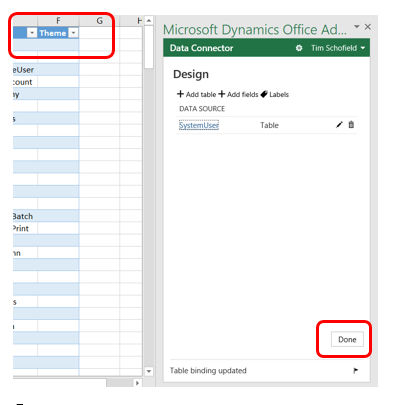
Done:

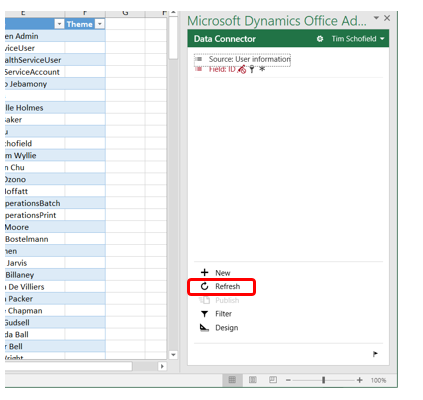
Refresh:

Click Yes, and note that the users’ existing Themes are now displayed.

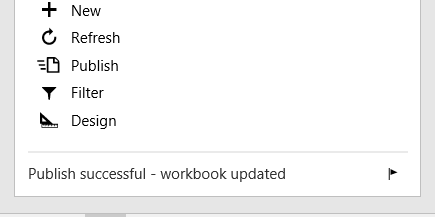
4. Update the Theme and click Publish:

Check for success:

Close the spreadsheet.

Wednesday, December 1, 2021

How to call standard button Clicked method from customized button in D365FO

Hi Guy's,

Recently, I received one requirement where we need standard button clicked method logic to be called from customized button on the same form but in another Action Pane Tab and button group.

To achieve this requirement, I used COC of the form and retrieve the button control in variable. I easily able to call the method's define on the button.

Please check below code.

[ExtensionOf(formStr(WHSLoadTable))]
final class WHSLoadTableForm_Extension
{

[FormControlEventHandler(formControlStr(WHSLoadTable, PickList), FormControlEventType::Clicked)]
public static void PickList_OnClicked(FormControl sender, FormControlEventArgs e)
{
        FormButtonControl callerButton = sender as FormButtonControl;

                  FormRun form = callerButton.formRun();

                  FormButtonControl btnPickList = form.design(0).controlName("WHSPickListShipping") as                 FormButtonControl;

                btnPickList.clicked();

        }
}

Happy Learning !!

Friday, September 3, 2021

Unable to find the report design reportName.DesignName in D365FO


 D365FO - Report error -

Unable to find the report design reportName.DesignName


If the report is not deployed on the server and you try to run the report from the front end then you will receive the error as ‘Unable to find the report design reportName.DesignName.

Go to Visual Studio and deploy the report and recheck the report from the front end.

Friday, December 20, 2019

AOS service not starting | SYSTIMEZONESVERSION

After installation of AOS, Service couldn't started due to systemtimezoneversion missmatch. Error is as below -

Error message: "The internal time zone version number stored in the database is higher than the version supported by the kernel (11/8). Use a newer Microsoft Dynamics AX kernel."

Resolution :
SELECT * FROM SQLSYSTEMVARIABLES where parm ='SYSTIMEZONESVERSION';
--Result is 11
Update SQLSYSTEMVARIABLES set value=7 where parm='SYSTIMEZONESVERSION';
--update it to 8

Thursday, September 26, 2019

Update cross reference in batch job - AX 2012 R2, R3

Below is the code snippets to update cross references of all AOT objects through batch job.

static void UpdateCrossRefBatch(Args _args)
{
   ;
   xRefUpdate::truncateXrefTables();
   xRefUpdateIL::updateAllXref(true, false, true);
   info("Done, cross reference update batch job created.");
}

Batch job will get added with the description as "Update xref for complete AOT" .

Happy Daxing !!

Thursday, May 31, 2018

Add display method to List page (VendTableListPage) AX 2012

Hi Experts,

As per requirement of client, PAN number should be display on vendor list page. I have created a display method on VendTable and added to vendTableListPage design


display PANNumber_IN getVendPANNumber()
{
    TaxInformationVendTable_IN      taxInformationVendtable_IN;

    select firstOnly PANNumber from taxInformationVendtable_IN
        where taxInformationVendtable_IN.VendTable == this.AccountNum;

    return taxInformationVendtable_IN.PANNumber;
}


After adding fields on Design, Save and compile the form.
**Most Important**
Go to the front end i.e. AX Client, Accounts Payable/ Vendors, the vendor list page form will open, Right click on form then Click on Reset button. After this you have to close the form and reopen again.

Thursday, March 15, 2018

Test Data Transfer tool

1. Download Test Data Transfer Tool
2. Install it on Database server
3. Import MetadataGenerator.XPO in Source AX application. (From where you want to export data)
4. Run job MetadataGenerator and find the  Metadata file
5. Paste Metadata file into [Lists] folder. ( check your installation path in DB server)  it will be like "C:\Program Files (x86)\Microsoft Dynamics AX 2012 Test Data Transfer Tool (Beta)\[Lists]"
6. To export data from specific company, open SQL Sever management studio and select your source database. Right click and new query. Copy paste below given code into query window. Replace your company name. (Company Name highlighted in bold font). Run the script and copy ouput.
7. Create new text file and paste query output. Save this file with name Filters.xml
8. Put Filters.xml file into [Lists] folder (Path given in step 5)
9. Open command prompt with Run as administrator.
10. Brows the path of DP.exe ("C:\Program Files (x86)\Microsoft Dynamics AX 2012 Test Data Transfer Tool (Beta)")
11.  Enter below command and hit enter.
DP.exe  Export "D:\Exported Data"  MicrosoftDynamicsAX  AXDBServerName

Filters.xml file content is as below.

-- Declare the variables to store the values returned by FETCH.
DECLARE @tableName varchar(100);
DECLARE @fieldName varchar(100);
SET @fieldName = 'DataAreaID';

DECLARE table_cursor CURSOR FOR
SELECT  Name FROM sys.tables ORDER BY Name;

OPEN table_cursor;

-- Perform the first fetch and store the values in variables. 
PRINT '<tables>'
FETCH NEXT FROM table_cursor
INTO @tableName;

-- Check @@FETCH_STATUS to see if there are any more rows to fetch.
WHILE @@FETCH_STATUS = 0
BEGIN
-- All tables don't have DataAreaId field, So check first that table is having dataareaid filed and then
-- add tableName to xml
IF COL_LENGTH(@tableName, @fieldName) IS NOT NULL
BEGIN
-- Concatenate and display the current values in the variables.
PRINT '<table name="' + @tableName +'"><filter><field>DataAreaID</field>=''USMF''</filter></table>'-- + @tableName --+ ' ' +  @LastName
END
-- This is executed as long as the previous fetch succeeds.
   FETCH NEXT FROM table_cursor
   INTO @tableName;
END
CLOSE table_cursor;
PRINT '</tables>'
DEALLOCATE table_cursor;
GO  

Wednesday, October 11, 2017

Rebuild and Update balances through X++

Hi Guys,

If you are posting journals through X++ and facing issues in trial balance update you can use below code to rebuild and update balances.


public void run()
{
    DimensionFocusProcessBalance    dimFocusProcessBal = new DimensionFocusProcessBalance();
    DimensionFocusUpdateBalance     dimFocusUpdateBal = new DimensionFocusUpdateBalance();
    DimensionHierarchy focusDimensionHierarchy;

    while Select focusDimensionHierarchy
        where focusDimensionHierarchy.FocusState == DimensionFocusBalanceInitializationState::Initialized
    {
        dimFocusProcessBal = DimensionFocusProcessBalance::construct(NoYes::No, focusDimensionHierarchy);
        dimFocusProcessBal.run();
        dimFocusUpdateBal = DimensionFocusUpdateBalance::construct(focusDimensionHierarchy);
        dimFocusUpdateBal.run();
    }

    info("Balances Updated !");
}

Saturday, August 19, 2017

Export data to EXCEL | AX 2009 | AX 2012 | Excel Report

Hi Techies,

Hope you are doing good. Recently due to INDIA GST Update in Microsoft dynamics AX most of the clients want to export data in excel to prepare GSTR excel files.

I designed a good excel worksheet with X++ and exported data as per requirement. I am sharing with you how can you design excel sheets with the help of X++ code. Please check below.

Step 1. Create a Class. This is class declaration method.

public class MKS_ExportToExcel extends Runbase
{
    #AviFiles
    DialogField         dlgFromDate,dlgToDate;
    TransDate           fromDate,toDate;

    //Excel file declaration
    SysExcelApplication  xlsApplication;
    SysExcelWorkBooks    xlsWorkBookCollection;
    SysExcelWorkBook     xlsWorkBook;
    SysExcelWorkSheets   xlsWorkSheetCollection;
    SysExcelWorkSheet    xlsWorkSheet;
    SysExcelRange        xlsRange;
    int                  row;
    str                  fileName;

    VendInvoiceJour     vendInvoiceJour;

    #DEFINE.CurrentVersion(1)
    #LOCALMACRO.CurrentList
        fromDate,
        toDate
    #ENDMACRO
}

Step 2. Create Dialog method.

protected Object dialog()
{
    Dialog      dialog = super();
    #resAppl
    ;

    // Set a title for dialog
    dialog.caption('Inward Supply Register Report');
    dialog.addTabPage('Selection Criteria');
    dialog.addGroup('Select date range');
    // Add a new field to Dialog
    dlgFromDate = dialog.addFieldValue(typeid(TransDate), fromDate,"From date");
    dlgToDate   = dialog.addFieldValue(typeid(TransDate), toDate, 'To date');

    return dialog;

}

Step 3. Create getFromDialog method.

public boolean getFromDialog()
{
    ;
    // Retrieve values from Dialog
    fromDate = dlgfromDate.value();
    toDate = dlgToDate.value();

    return super();

}

Step 4. main Method

public static void main(Args _args)
{
     MKS_ExportToExcel reportClass = new MKS_ExportToExcel();

    // Prompt the dialog, if user clicks in OK it returns true
    if (reportClass.prompt())
    {
        reportClass.run();
    }

}

Step 5. run method.

public void run()
{
    ;
    this.setExcelInitialsAndHeader();
    this.fetchDataIntoExcel();
    this.endExcel();

}

Step 6. setExcelInitialsAndHeader - To setup Excel report heading section.

public void setExcelInitialsAndHeader()
{
    COM                     range;
    COM                     autoFit;
    COM                     merge;
    COM                     WrapText;
    COM                     ColumnWidth;
    COM                     RowHeight;

    SysExcelStyles          styles;
    SysExcelStyle           style;
    SysExcelFont            font;
    SysExcelCells           cells;
    FileNameFilter          filter = ["Excel file", "*.xlsx"];
    ;

    row = 1;

    fileName = winapi::getSaveFileName(infolog.hWnd(), filter , @"c:\...\desktop", "Save as Excel file","xlsx","Report name");
    //fileName ="C:\\Windows\\Temp\\test.xlsx";

    if(!fileName)
    return;
    //Check whether the document already exists
    if(WinApi::fileExists(fileName))
    WinApi::deleteFile(fileName);
    //throw error("File already exist");


    //Initialize Excel instance
    xlsApplication           = SysExcelApplication::construct();

    //Open Excel document
    //xlsApplication.visible(true);


    //Create Excel WorkBook and WorkSheet
    xlsWorkBookCollection    = xlsApplication.workbooks();
    xlsWorkBook              = xlsWorkBookCollection.add();
    xlsWorkSheetCollection   = xlsWorkBook.worksheets();
    xlsWorkSheet             = xlsWorkSheetCollection.itemFromNum(1);

    Styles = xlsWorkBook.styles();
    // Create new style
    style = styles.add('Header');
    // Set font for this style to bold
    font = style.font();
    font.bold(true);
    font.color(51);


    //Excel Report Heading
    range = xlsWorkSheet.range('A1:F1').comObject();
    range.merge();
    RowHeight = range.RowHeight(30);

    xlsWorkSheet.rows().item(1).style('Title');

    range = xlsWorkSheet.range('A2:BE2').comObject();
    xlsWorkSheet.rows().item(2).style('Output');
    xlsWorkSheet.rows().item(2).horizontalAlignment(-4108);
    wrapText = range.wraptext(true);

    ColumnWidth = range.ColumnWidth(14.71);

    xlsWorkSheet.cells().item(row,1).value('GST Report');
    row++;

    //Excel column caption
    xlsWorkSheet.cells().item(row,1).value('Sr. No.');
    xlsWorkSheet.cells().item(row,2).value('Vendor Code');
    xlsWorkSheet.cells().item(row,3).value('Vendor Name');
   
    row++;

}

Step 6. endExcel -  To Setup process while closing excel.

public void endExcel()
{
    ;
    // Set the column width to autoFit
    xlsWorkSheet.columns().autoFit();
    //Save Excel document
    xlsWorkbook.saveAs(fileName);


    xlsWorkbook.comObject().save();
    xlsWorkbook.saved(true);
    //Open Excel document
    xlsApplication.visible(true);

}

Step 7. fetchDataIntoExcel - Used to put data into excel rows.

public void fetchDataIntoExcel()
{
    VendTable               vendTable;
    CompanyInfo             companyInfo = CompanyInfo::find();
    TaxWithholdTrans_IN     tdsTable;
    LedgerJournalTrans      ledgerJournalTrans;

    ;
    progress = new RunbaseProgress();
    progress.setCaption("Export To Excel in progress...");
    progress.setAnimation(#AviTransfer);

    while select vendInvoiceJour
    order by    vendInvoiceJour.InvoiceDate
        where vendInvoiceJour.InvoiceDate >= fromDate
        && vendInvoiceJour.InvoiceDate <= toDate

    {
        vendTable = VendTable::find(vendInvoiceJour.InvoiceAccount);
        progress.setText(strfmt("Vendor %1", vendTable.Name));

        xlsWorkSheet.cells().item(row,1).value(row-2);
        xlsWorkSheet.cells().item(row,2).value(vendInvoiceJour.InvoiceAccount);
        xlsWorkSheet.cells().item(row,3).value(vendTable.name);

row++;
    }


}

Step 8. PACK and UnPack methods.

container pack()
{
    return [#CurrentVersion,#CurrentList];

}


public boolean unpack(container _packedClass)
{
    int version = conPeek(_packedClass,1);

    switch (version)
   {
        case #CurrentVersion:
            [version,#CurrentList] = _packedClass;
            break;
        default:
            return false;
    }
    return true;

}

Monday, March 13, 2017

Ledger Account Setup Dynamics AX 2012

Hi Guys,

The Ledger Account setup is the most important setup for Dynamics AX Implementation.

Below are the Account Types and number sequence (Range), this will help you to arrange accounts in particular range.

Account Type From To
Assets 10000 19999
Liabilities 20000 29999
Equities/Funds 30000 39999
Revenue 40000 49999
Expense 50000 59999

Sample segment
Private Sector
Company--Department ---Cost Center ---Account --Project (maybe)

Public Sector
Appropriation Year --Cost Center --Account --Project (May be)

Thursday, April 7, 2016

MB6-890 Microsoft Development Introduction - AX7 (Rainer) - Exam Topics

Exam Topics
Understand the Architecture and Development Environment (20% - 25%)
Understand the Architecture and Development Environment
This objective may include but is not limited to: identify features of Microsoft Dynamics AX; describe the development environment; describe the components in the application stack; identify cloud architecture components; explain the server architecture; describe the layer architecture.
Use Microsoft Visual Studio to manage development with Microsoft Dynamics AX
This objective may include but is not limited to: identify the windows and basic navigation of Visual Studio; describe differences between and uses for projects, models, solutions, and packages.

Use the Application Explorer to Develop New Elements (25% - 30%)
Create and manage labels and resources
This objective may include but is not limited to: create new label files; create and use labels; describe elements and uses for labels; identify best practices for labels identify uses for resources.
Create and manage data types
This objective may include but is not limited to: describe uses for base enumerations; create new base enumerations; identify best practices for base enumerations; describe primitive and extended data types; create new extended data types; identify key properties for extended data types; implement best practices for extended data types.
Create and manage tables
This objective may include but is not limited to: identify the components of a table; describe various types of table relationships; describe various types of table indexes; implement best practices for tables, relationships, and indexes.
                                                        
Read, Write and Understand Basic X++ (30% - 35%)
Describe X++
This objective may include but is not limited to: identify the characteristics of X++; use the code editor to write X++; describe the features of IntelliSense; identify basic syntax for X++; describe the use of common key words in X++; describe the features of the debugger; use the comparison tool; use the best practice checker.
Work with X++ control statements
This objective may include but is not limited to: work with variables, operators, conditional statements, and loops; use built-in functions; use communication tools.
Work with classes
This objective may include but is not limited to: create new classes; describe scoping events and parameters; describe inheritance; identify key best practices when writing X++.
Use X++ to manipulate data
This objective may include but is not limited to: identify techniques for data retrieval; explain uses for transaction integrity checking; insert, update, and delete records using X++; identify best practices for manipulating data with X++.
Manage exceptions in X++
This objective may include but is not limited to: identify exception types; use try/catch statements; describe the features of optimistic concurrency control; describe best practices for exception handling with X++ .

Manage the User Interface and Security for Developers  (20% - 25%)
Manage the user interface
This objective may include but is not limited to: identify components of various form patterns; identify common form patterns and sub patterns; identify key properties for form elements; apply and validate form patterns; describe uses for tiles; describe how to join data in forms; implement best practices for form development.
Manage user navigation
This objective may include but is not limited to: identify types of menu items; create menu items and menus; identify key properties for menu items; describe uses for menu items; implement best practices for menus and menu items.
Manage security in the development environment
This objective may include but is not limited to: describe the security architecture; describe the components of role-based security; create new privileges, duties, and roles in the application explorer; describe the extensible data security framework.

Tuesday, October 13, 2015

AX DB Restore Scripts - Moving AX DB from one server to another server

Following SQL script is very useful while moving AX DB from one server to other server. Thanks to http://www.exploreax.com.

Declare @AOS varchar(30) = '[AOSID]' --must be in the format '01@SEVERNAME'
---Reporting Services---
Declare @REPORTINSTANCE varchar(50) = 'AX'
Declare @REPORTMANAGERURL varchar(100) = 'http://[DESTINATIONSERVERNAME]/Reports_AX'
Declare @REPORTSERVERURL varchar(100) = 'http://[DESTINATIONSERVERNAME]/ReportServer_AX'
Declare @REPORTCONFIGURATIONID varchar(100) = '[UNIQUECONFIGID]'
Declare @REPORTSERVERID varchar(15) = '[DESTINATIONSERVERNAME]'
Declare @REPORTFOLDER varchar(20) = 'DynamicsAX'
Declare @REPORTDESCRIPTION varchar(30) = 'Dev SSRS';

---SSAS Services---
Declare @SSASSERVERNAME varchar(20) = '[YOURSERVERNAME]\AX'
Declare @SSASDESCRIPTION varchar(30) = 'Dev SSAS'; -- Description of the server configuration

---BC Proxy Details ---
Declare @BCPSID varchar(50) = '[BCPROXY_SID]'
Declare @BCPDOMAIN varchar(50) = '[yourdomain]'
Declare @BCPALIAS varchar(50) = '[bcproxyalias]'
---Service Accounts ---
Declare @WFEXECUTIONACCOUNT varchar(20) = 'wfexc'
Declare @PROJSYNCACCOUNT varchar(20) = 'syncex'
---Help Server URL---
Declare @helpserver varchar(200) = 'http://[YOURSERVER]/DynamicsAX6HelpServer/HelpService.svc'

---Outgoing Email Settings---
Declare @SMTP_SERVER varchar(100) = 'smtp.mydomain.com' --Your SMTP Server
Declare @SMTP_PORT int = 25
---DMF Folder Settings ---
Declare @DMFFolder varchar(100) = '\\[YOUR FILE SERVER]\AX import\ '

---Email Template Settings---
Declare @EMAIL_TEMPLATE_NAME varchar(50) = 'Dynamics AX Workflow QA - TESTING'
Declare @EMAIL_TEMPLATE_ADDRESS varchar(50) = 'workflowqa@mydomain.com'
---Email Address Clearing Settings---
DECLARE @ExclUserTable TABLE (id varchar(10))
insert into @ExclUserTable values ('userid1'), ('userid2')

--List of users separated by | to keep enabled, while disabling all others
Declare @ENABLE_USERS NVarchar(max) = '|Admin|TIM|'
--List of users separated by | to disable, while keeping all the rest enabled all others
--Declare @DISABLE_USERS NVarchar(max) = '|BOB|JANE|'

--*****BEGIN UPDATES*******---

---Update AOS Config---
delete from SYSSERVERCONFIG where RecId not in (select min(recId) from SYSSERVERCONFIG)
update SYSSERVERCONFIG set serverid=@AOS, ENABLEBATCH=1
where serverid != @AOS -- Optional if you want to see the "affected row count" after execution.

---Update Batch Servers---
delete from BATCHSERVERGROUP where RecId not in (select min(recId) from BATCHSERVERGROUP group by GROUPID)
update BATCHSERVERGROUP set SERVERID=@AOS
where serverid != @AOS -- Optional to see "affected row count"
update batchjob set batchjob.status=4 where batchjob.CAPTION = '[BATCHJOBNAME]'
update batch set batch.STATUS=4 from batch inner join BATCHJOB on BATCHJOBID=BATCHJOB.RECID AND batchjob.CAPTION = '[BATCHJOBNAME]'

---Update Reporting Services---
delete from SRSSERVERS where RecId not in (select min(recId) from SRSSERVERS)
update SRSSERVERS set
    SERVERID=@REPORTSERVERID,
    SERVERURL=@REPORTSERVERURL,
    AXAPTAREPORTFOLDER=@REPORTFOLDER,
    REPORTMANAGERURL=@REPORTMANAGERURL,
    SERVERINSTANCE=@REPORTINSTANCE,
    AOSID=@AOS,
    CONFIGURATIONID=@REPORTCONFIGURATIONID,
    DESCRIPTION=@REPORTDESCRIPTION
where SERVERID != @REPORTSERVERID -- Optional if you want to see the "affected row count" after execution.

---Update SSAS Services---
delete from BIAnalysisServer where RecId not in (select min(recId) from BIAnalysisServer)
update BIAnalysisServer set
    SERVERNAME=@SSASSERVERNAME,
    DESCRIPTION=@SSASDESCRIPTION,
ISDEFAULT = 1
WHERE SERVERNAME <> @SSASSERVERNAME -- Optional where clause if you want to see the "affected rows

---Set BCPRoxy Account---
update SYSBCPROXYUSERACCOUNT set SID=@BCPSID, NETWORKDOMAIN=@BCPDOMAIN, NETWORKALIAS= @BCPALIAS
where NETWORKALIAS != @BCPALIAS --optional to display affected rows.
---Set WF Execution Account---
update SYSWORKFLOWPARAMETERS set EXECUTIONUSERID=@WFEXECUTIONACCOUNT where EXECUTIONUSERID != @WFEXECUTIONACCOUNT
---Set Proj Sync Account---
update SYNCPARAMETERS set SYNCSERVICEUSER=@PROJSYNCACCOUNT where SyncServiceUser!= @PROJSYNCACCOUNT
---Set help server URL---
update SYSGLOBALCONFIGURATION set value=@helpserver where name='HelpServerLocation' and value != @helpserver

---Update Email Parameters---
Update SysEmailParameters set SMTPRELAYSERVERNAME = @SMTP_SERVER, @SMTP_PORT=@SMTP_PORT
---Update DMF Settings---
update DMFParameters set SHAREDFOLDERPATH = @DMFFolder
where SHAREDFOLDERPATH != @DMFFolder --Optional to see affected rows

---Set BCPRoxy Account---
update SYSBCPROXYUSERACCOUNT set SID=@BCPSID, NETWORKDOMAIN=@BCPDOMAIN, NETWORKALIAS= @BCPALIAS
where NETWORKALIAS != @BCPALIAS --optional to display affected rows.
---Set WF Execution Account---
update SYSWORKFLOWPARAMETERS set EXECUTIONUSERID=@WFEXECUTIONACCOUNT where EXECUTIONUSERID != @WFEXECUTIONACCOUNT
---Set Proj Sync Account---
update SYNCPARAMETERS set SYNCSERVICEUSER=@PROJSYNCACCOUNT where SyncServiceUser!= @PROJSYNCACCOUNT
---Set help server URL---
update SYSGLOBALCONFIGURATION set value=@helpserver where name='HelpServerLocation' and value != @helpserver

---Update Email Templates---
update SYSEMAILTABLE set SENDERADDR = @EMAIL_TEMPLATE_ADDRESS, SENDERNAME = @EMAIL_TEMPLATE_NAME where SENDERADDR!=@EMAIL_TEMPLATE_ADDRESS OR  SENDERNAME!=@EMAIL_TEMPLATE_NAME;
update SYSEMAILSYSTEMTABLE set SENDERADDR = @EMAIL_TEMPLATE_ADDRESS, SENDERNAME = @EMAIL_TEMPLATE_NAME where SENDERADDR!=@EMAIL_TEMPLATE_ADDRESS OR  SENDERNAME!=@EMAIL_TEMPLATE_NAME;
---Update User Email Addresses---
update sysuserinfo set sysuserinfo.EMAIL = '' where sysuserInfo.ID not in (select id from @ExclUserTable)

---Disable all users except for a specific set---
update userinfo set userinfo.enable=0 where  CharIndex('|'+ cast(ID as varchar) + '|' , @ENABLE_USERS) = 0
---Disable specific users---
---update userinfo set userinfo.enable=0 where  CharIndex('|'+ cast(ID as varchar) + '|' , @DISABLE_USERS) > 0

--Clean up server sessions
delete from SYSSERVERSESSIONS
--Clean up client sessions.
delete from SYSCLIENTSESSIONS

reference : http://www.exploreax.com/blog/blog/2015/10/13/ax-db-restore-scripts-full-script/

Wednesday, June 17, 2015

How to get Paper sizes in AX 2012

static void Job1(Args _args)
{
    System.Drawing.Printing.PrinterSettings printSetting = new System.Drawing.Printing.PrinterSettings();
    System.Drawing.Printing.PaperSize  size = new System.Drawing.Printing.PaperSize();
    System.Collections.ArrayList    paperSizes;
    System.Collections.IEnumerator  enumerator;

    paperSizes= printSetting.get_PaperSizes();
    enumerator = paperSizes.GetEnumerator();

    while (enumerator.MoveNext())
    {
        size = enumerator.get_Current();
        info(size.get_PaperName());   
    }

}

Thursday, May 14, 2015

How to delete Label Files from AX 2012

Here are the steps to delete Label Files from AX 2012:

  • Create a new model. You could call it "Test".
  • Open the AOT and move the Label File(s) you want to get rid of to the new model.
  • Close AX and stop the AOS.
  • Use AXUtil to delete the new model.
  • Select the label files (name start with 'ax' and followed with label id. select all files) and Delete from the server folder; C:\Program Files\Microsoft Dynamics AX\60\Server\...\bin\Application\Appl\Standard
  • Start the AOS.
  • Skip the upgrade wizard.

Friday, February 6, 2015

Read text file and SubStr to fetch fixed length columns - AX 2012

static void readTextFile(Args _args)
{
    Container               con;
    Filename                filename, Filename2;
    FileIOPermission        permission;
    TextIO                  textIO, textIO1;
    Str1260                 line;
    #File
    ;
    
    Filename = @"C:\Test\testFile.txt";
    permission = new fileIOpermission(filename,"RW");
    permission.assert();
    textIO = new TextIO(filename,#io_read);
    //textIO.inFieldDelimiter('|');
    if(textIO)
    {
        while(textIO.status() == IO_Status::Ok)
        {
            con = textIO.read();
            if(con)
            {
                line = Global::con2Str(con);
                info(strFmt("text - %1",line));
                info(strFmt("Company id - %1",subStr(line,1,4)));
                info(strFmt("code - %1",subStr(line,5,6)));
                info(strFmt("account num - %1",subStr(line,12,14)));
                info(strFmt("transdate - %1",subStr(line,26,6)));
                info(strFmt("Cheque num - %1",subStr(line,32,10)));
                info(strFmt("amount - %1",subStr(line,42,8)));
                break;
            }
        }
    }
}

Customer payment journal through X++ Code - AX 2012

static void cust_GLPosting(Args _args)
{
    Ledgerjournalname       ledgerjournalname;
    LedgerjournalTable      LedgerjournalTable;
    LedgerjournalTrans      LedgerjournalTrans;
    LedgerjournalCheckPost  LedgerjournalCheckPost;
    NumberSeq               numberSeq;
    Container               con;
    Filename                filename, Filename2;
    FileIOPermission        permission;
    TextIO                  textIO, textIO1;
    Dialog                  dialog;
    DialogField             dialogField;
    AccountNum              customerAccount= 'BRMF-000001';
    AccountNum              offsetAccNum = 'B01';
    #File

    select ledgerjournalname where ledgerjournalname.JournalName == "Test";
    ttsBegin;
    LedgerjournalTable.JournalName = ledgerjournalname.JournalName;
    LedgerjournalTable.initFromLedgerJournalName();
    LedgerjournalTable.JournalNum  = JournalTableData::newTable(LedgerjournalTable).nextJournalId();
    LedgerjournalTable.insert();
    ttsCommit;
        
    ttsBegin;
    numberSeq                               =   NumberSeq::newGetVoucherFromId((ledgerjournalname.NumberSequenceTable));
    LedgerjournalTrans.Voucher              =   numberSeq.voucher();
    LedgerjournalTrans.JournalNum           =   LedgerjournalTable.JournalNum;
    LedgerjournalTrans.CurrencyCode         =   "USD";
    LedgerjournalTrans.ExchRate             =   Currency::exchRate(LedgerjournalTrans.CurrencyCode);
    LedgerjournalTrans.AccountType          =   LedgerJournalACType::Cust;
    LedgerjournalTrans.parmAccount(customerAccount,LedgerjournalTrans.AccountType);
    LedgerjournalTrans.Txt                  =   'Testing';//conPeek(con,1);
    LedgerjournalTrans.AmountCurCredit      =   200;//conPeek(con,3);
    LedgerjournalTrans.TransDate            =   systemDateGet();//str2Date(conPeek(con,4),123);
    LedgerjournalTrans.OffsetAccountType    =   LedgerJournalACType::Bank;//LedgerjournalTable.OffsetAccountType;
    //LedgerJournalTrans.offsetacco
    LedgerjournalTrans.OffsetLedgerDimension =   22565431567; //LedgerjournalTable.OffsetLedgerDimension;
    LedgerjournalTrans.DefaultDimension     =   CustTable::find(customerAccount).DefaultDimension;
    LedgerjournalTrans.OffsetDefaultDimension=  CustTable::find(customerAccount).DefaultDimension;
    LedgerjournalTrans.insert();
    ttsCommit;
               
    LedgerjournalCheckPost = LedgerjournalCheckPost::newLedgerJournalTable(LedgerjournalTable,NoYes::Yes);
    LedgerjournalCheckPost.run();
    
}

Tuesday, January 20, 2015

10 Steps - After changing domain of AX VM you need to follow

Hi Friends,

Here are the 10 easy steps to follow after changing the domain name of the microsoft dynamics AX VM

  1. Create user (AXAdmin) (or you can use any dedicated user from the domain) and add this user administrator group.
  2. Go to registry and path - HKLM\Software\Microsoft\WindowsNT\CurrentVersion\ProfileList. In this path you will find the SID for newly created user. Copy this SID for step 3


  1. Copy SID and goto path HKLM\Software\Microsoft\Dynamics\6.0\Setup\DynamicsServer. Here change the Account key value with new user id and SetupUser with the SID which we copied previously.


  1. Login into the Sql server management studio and add newly created user id for all required databases.
  2. In MicrosoftDynamicsAX database open UserInfo table in editing mode and for 'Admin' user update SID, NetworkDomain and NetworkAlis
  3. Open SYSBCPROXYUSERACCOUNT table in editing mode and update SID, NetworkDomain and NetworkAlis
  4. Open Reporting services configuration Manager and change the Service account and Execution account and check report manager url (browse this url and check whether it's showing DynamicsAX folder and reports). Sometimes report server url is throwing encryption key error. Go to reporting services configuration and in Encryption Keys select the option of Deleted encrypted content and select Delete button. Just verify again by browsing report url.
  5. Go to services and locate microsoft dynamics AX service - change the log on property with the new userid
  6. Check the AX Server and client configuration for database connection details if your database server name is changed.
  7. Start the Microsoft Dynamics AX service and Logon to AX.

Tuesday, December 23, 2014

How to import Contoso Demo Data to Dynamics AX 2012 R3

The setup contoso demo data for Dynamics Ax 2012 R3 is different from previous version. I remember, I used .dat file to load demo data into Dynamics Ax 2012 R2. Now DynamicsAX2012R3DemoData.exe available partner Resource.
03-Demo setup
DynamicsAX2012R3DemoData.exe extracted files round 15 GB. Extracted folder contains three types of files. According to MSDN
  • Xml (A bcp data file that contains table data. Columns are separated by #|EOC|#. Rows are separated by #|EOR|#\n.)
  • Out (A bcp data file that contains the table metadata (column descriptions).
  • OutModel (This metadata includes all names and IDs of the table and its fields. This file also includes the elementType attribute, which stores the names and IDs of any Microsoft Dynamics AX tables, classes, or extended data types that are referenced by the table)
Installation of Test Data Transfer Tool:
The MSDN Described The Import export with Test Data Transfer Tool (beta) as follow.
IC665318


Test Data transfer Tool is available on partner resource.
Go on following link

04-InformationSource

On login I found download page
05-download

There will be zip file downloaded.  On running I found following installation wizard.

11-Beta Setup

12-Beta Setup next

Setup run will be generated as following
06-folderDetail

Import Data Into Dynamics Ax 2012 R3 instance:
And import MetaDataXMLGenerator.xpo in dynamics Ax.
07-ImportGenerator

This xpo imports results a job inside job node under AOT.

08-Job


This job will generate Metadata.xml. This Metadata.xml will be created in window temporary folder.
Path of file in metadata.xml can be get from infobox which will appear after successful run of job.
13-metaFile

if you lost infobox,You can get temporary folder path with following command echo %temp%. where you can get Metadata.xml
Copied metadata.xml into [list] folder of test tool Data folder. If it already exists then overwrite it.
15-copy meta data

Now open command prompt. Go to directory where Test import tool is extracted.
Run the following command
DP.exe IMPORT “E:\Contoso_Demo_Data\DynamicsAXR3DemoData” MicrosoftDynamicsAx

Please update path according to your installation.
09-Command Prompt

After running the command, you will find following window which describe the process by remaining table to number data, and number of error occurs during import.
10-Remaining

This process takes hours and hours with respect to your machine. After completion, I found demo data inside my dynamics Ax 2012 R3.

14-DataAppear

Thanks to Ali